OpenBSD
MP3 Player OpenBSD
MP3 Player
Although this
is a FreeBSD website, I like OpenBSD
too. As I developed a One Floppy MP3 Player based on
OpenBSD 4.1, I'd like to share some information about it.
1FCD-OpBSD-1.0
or Karma BSD is
a One Floppy OpenBSD MP3 Player with functionality to mount
NTFS, UDF (DVD, CDROM, external ones too), EXT2FS, NFS, MFS,
MSDOS filesystems and play MP3 tracks, but also copy files
from any disk to any disk if you have an old notebook (or
desktop computer)
1FCD-OpBSD aka Karma BSD, Copyright
(c) George Sipos, March 2008
Download Karma BSD
My one floppy projects are all
available in one multiboot ISO image, which can
be downloaded here (I thank www.rootbsd.net
for giving me space on their servers).
MAHESHAOPENBSD
SERVER (with WordPress running without any additionl installation)
is now available (released on April 5, 2013).
Contact
Installation
The diskette image is in the Zip format; it must be unpacked and written
to a floppy using this command (FreeBSD, Linux: /dev/fd0; OpenBSD: /dev/fd0a):
dd if=karmabsd.img of=/dev/fd0a
or you can use the rawrite.exe utility, which can be found on
many Unix sites; it is also included in the 1FCDBSD
package (One Floppy CD Audio and MP3 Player). You can also use utilities
like Winimage.
As I found some incompatibilities between
DOS, Windows 98 and Windows XP, try rawwritewin.exe
if you use Windows XP/W2K/W3K and rawrite.exe for Windows 98 only. Winimage
should work everywhere.
 How
to use 1FCD-OpBSD-1.0 or WHAT IS KARMA
BSD? How
to use 1FCD-OpBSD-1.0 or WHAT IS KARMA
BSD?
One Floppy OpenBSD MP3 Player or 1FCD-OpBSD aka Karma
BSD is a small system that fits on one floppy and plays MP3
files over network (NFS), or in mounted drives. This is a quickstart
howto - tips how to use this software. If you are looking for a comprehensive
help, this is not the right place to start (to learn about OpenBSD,
please read its manuals and howtos).
Several years ago I started 1FCDBSD-1.0,
which is the same thing as Karma BSD; however, 1FCDBSD
is a FreeBSD 4.5 system and thus a bit old. 1FCDBSD supports
playing Audio CD's, Karma BSD does not. But Karma BSD
is built upon a newer version of OpenBSD and it has therefore a better
support for audio cards. Karma BSD is a simple One Floppy
MP3 player which can be parallelly used for more purposes - as it
has a network support, you can mount a NFS volume of a remote computer
and play MP3 files with it remotely; its memory file system (MFS)
can be adjusted with /mybin/resizetmp script, just type: more
/mybin/resizetmp to see the syntax.
MINIMAL REQUIREMENTS
386 Processor and 8 MB RAM, no hard disk is necessary. However, this
configuration may have many problems and this is not any weak point
of Karma BSD when such an old computer will not work. MP3 is
a unique compression that requires a good processor for decompression,
usually Pentium 133 is absolutely the best minimal choice to use. I
tested KarmaBSD on Toshiba 220 CS notebook (48 MB RAM, 133 MHz
Pentium), Compaq notebook (200 MHz Pentium, 64 MB RAM), IBM
T23 notebook (1 GHz Pentium III and 256 MB RAM) and several desktop
computers where it worked.
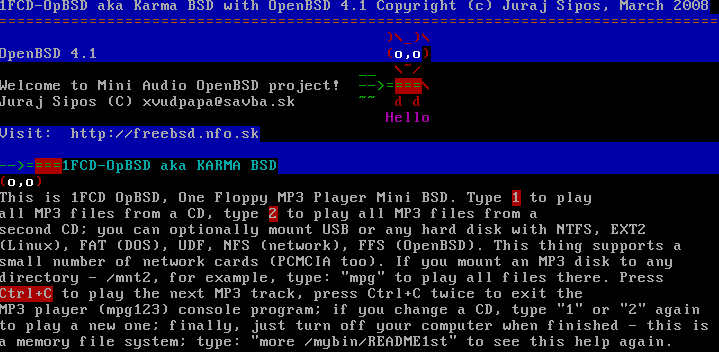
HOW KarmaBSD WORKS
1FCD-OpBSD (KarmaBSD) uses mpg123-059r
version, which is compiled statically. mpg123 has many options,
but look elsewhere for tips and tricks. All you need to do with Karma
BSD is to mount a disk (USB; UDF:
CDROM/DVD, ISO9660: CDROM/DVD; NTFS; EXT2FS;
FAT MSDOS file systems; NFS file system), and then type
"mpg" (or "1" or "2"),
which is a script (actually three scripts: "mpg", "1",
"2") in /mybin directory; it creates a playlist in
/tmp from MP3 files mounted in /mnt2 (the command "1"
mounts a CD to /cdrom and "2" to /cdrom2).
There are also /mnt3 and /mnt4 directories. With such a unique mounting
ability, this floppy can also be used as an installation tool for notebooks
with broken CDROMs - even very old notebooks have USB ports but they
often appear without a functional or with a broken CDROM drive. How
to install a system to such a notebook? OpenBSD installation floppy
does not support NTFS or EXT2FS filesystems, so 1FCD-OpBSD is the best
solution to copy anything from a USB stick to your notebook's hard disk
(use the "cp -R" command for this, example is bellow).
Do not use newfs, disklabel
or fdisk commands if you are not an experienced
Unix user. This system is intended for use with older computers and
inappropriate use of its commands may result in data loss. First backup
and then study documentation for the above commands (newfs, fdisk, disklabel).
After the computer starts, you may take the floppy out and mount another
one.
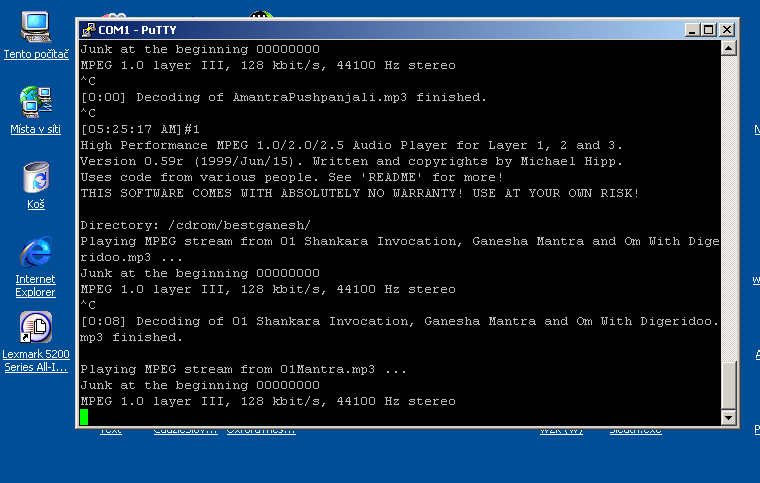
On the picture above you see Karma BSD
playing Hindu mantras through serial
console in the Windows environment by means of Putty (software
that allows you to login into remote computers) - thus, with KarmaBSD
anybody may also access any computer (notebook preferably) with a broken
display or keyboard (keyboard should at least allow you to type the
command: set tty com0 as soon as you see KarmaBSD's boot prompt).
KarmaBSD is also helpful for recovery of data from broken notebooks!!!
If your notebook's display does not work, controlling it remotely (via
Putty or Unix commands) means that you can save your notebook's data.
TIPS
TIP 1: Making an MSDOS filesystem
In case you have an old notebook and want to use this thing for data
copying and the notebook's disk is corrupted, you can create an MSDOS
file system with the newfs_msdos command. Examples:
newfs_msdos /dev/rwd0i
-F is FAT type, example: -F 16, or -F 32: newfs_msdos
-F 32 /dev/rwd0i
or you can format a floppy:
newfs_msdos -f 1440 -L label fd0c (or fd0a)
TIP 2: How to configure NFS
Put the following to your /etc/rc.conf (or rc.local) on your
desktop OpenBSD machine (not where this floppy runs) and reboot:
portmap=YES
nfs_server=YES
To mount a NFS volume, you must have your REMOTE (server) computer
configured as a NFS server. On the SERVER part (OpenBSD in this case,
but not the computer where this floppy runs) put the following in the
/etc/exports file:
/mnt -alldirs -ro network 192.168.0
Remember: If you make changes to /etc/exports while NFS
is already running, you need to make mountd aware of this! Just HUP
mountd on the SERVER and the changes will take affect immediately (kill
-HUP `cat /var/run/mountd.pid`).
On the CLIENT computer - 1FCD-OpBSD in our case, just type:
mount -t nfs 192.168.0.1:/ /mnt
and that's it.
Look into documentation of systems other than OpenBSD - if you use
them - they may have their own NFS configuration different from the
one described above.
TIP 3: How to mount a drive
To mount any drive (NTFS drive, for example), first type: disklabel
wd0, or disklabel sd0 (USB disk); you will see partitions
marked with letters like j:, k:, l:, m:, never
use c:; unfortunately, disklabel may see NTFS drives as unknown,
but it does not matter - if you type: mount_ntfs /dev/wd0j /mnt,
your NTFS drive will sit up into /mnt (read only); the same applies
to EXT2FS (writable), MSDOS FAT (writable), etc.
TIP 4: What you should not do
Do not type "umount -a", as all MFS volumes will disappear
and a playlist cannot be created in the /tmp directory anymore (/tmp
will not be writable). No damage will occur, but you will arrive in
a read-only system. Look into the /mybin/resizetmp script to
learn how to repair this (or reboot).
TIP 5: Booting with kernel configuration
This system has a boot config (kernel configuration). Just type
boot -c at the boot prompt.
TIP 6: Using FDISK
This system has OpenBSD fdisk utility (disklabel too). To prepare
an MSDOS style partition, type: fdisk -e wd0, then: print
(or help to learn more about fdisk's possibilities); then: edit
0 (if 0 is the partition you want to edit); then: 04 (for
DOS FAT16), or 0B or 0C (both for FAT32), or A6
(for OpenBSD), A5 (for FreeBSD), A9 (for NetBSD), 83
(for Linux), 82 (for Linux swap). Then type quit to save
changes.
TIP 7: How to use serial console
This mini BSD also supports serial console (to capture the output
of a remote computer's screen to the screen of another computer over
a serial cable). What you have to do is to write set tty com0 at
the boot prompt when this floppy starts and then type: tip tty00
on your desktop computer (not the one where this floppy runs). You
can thus control the computer that has a broken keyboard or display
(notebook). "set tty com0" may be written to the boot.conf
and started automatically, but this is not implemented in KarmaBSD.
Of course, you can play MP3 files over the serial console, too.
TIP 8: Playlist and umount
After a CD was mounted, the mounting script ("1" or
"2") will make a playlist of tracks in the /tmp directory
- you may view it with the "pl" command. If you stopped
the MP3 player by pressing Ctrl+C twice, the CD will be still
mounted (/cdrom or /cdrom2). The "1" ("2")
script, when run again, will umount /cdrom (or /cdrom2).
TIP 9: DVD's and CD's
This little BSD also works with USB CDROM/DVD external devices.
Just use the mount command - 1FCD-OpBSD does not differentiate
between CDROM/DVD devices, just type: mount -t udf (DVD or CD
with UDF format); for example, "mount -t udf /dev/cd0a /cdrom"
OR "mount -t 9660 /dev/cd0a /cdrom", and if you have
a DVD-RAM disk in your DVD drive, it will be mounted too (UDF).
TIP 10: Do not type the same commands again
Use arrow up (keyboard) - the shell remembers all commands that
you executed and you do not have to type them again.
TIP 11: Diagnostic
This system has the dmesg command which is good for hardware
identification. To save the results of dmesg, type: dmesg > /mnt2/dmesg.txt
TIP 12: This floppy in a CD
You can make a CD from this floppy with the mkisofs command
(on another system, of course) with the -b option. However, my
one floppy projects (KarmaBSD, SONaFR, 1FCDBSD) are all available in
one multiboot ISO image, which can
be downloaded here.
Other tips
Type: "cp -R /mnt2/myNTFSdrive /mnt3/myDOSdrive" to
copy files from mounted disks with all subdirectories.
Type: "more /etc/allcommands" to see all commands this
mini BSD supports.
Type: "floppy" to format a diskette; or to backup or
restore configurations. You must use a preformatted diskette.
Type: "more /mybin/resizetmp" to see how to reconfigure
RAM.
Type: "more /etc/license" to see the license.
Type: "more /etc/cards" to see the network cards (NIC's)
and sound cards this mini BSD supports.
Type: "ifconfig" to find out supported network cards;
if dc0 was found, then type: "ifconfig dc0 192.168.0.2".
Type: "more /etc/TODO" to see how you can help.
See this link - SONaFR introduction -
to learn more about the network configuration.
Enjoy!
|